Managing Club’s Court
by Courtwin Team • January 16, 2025Courts can be added after creating a new club account during the onboarding process. However, if there are any changes in the information or additions to the court later, you can open the Settings page and then go to Court menu.
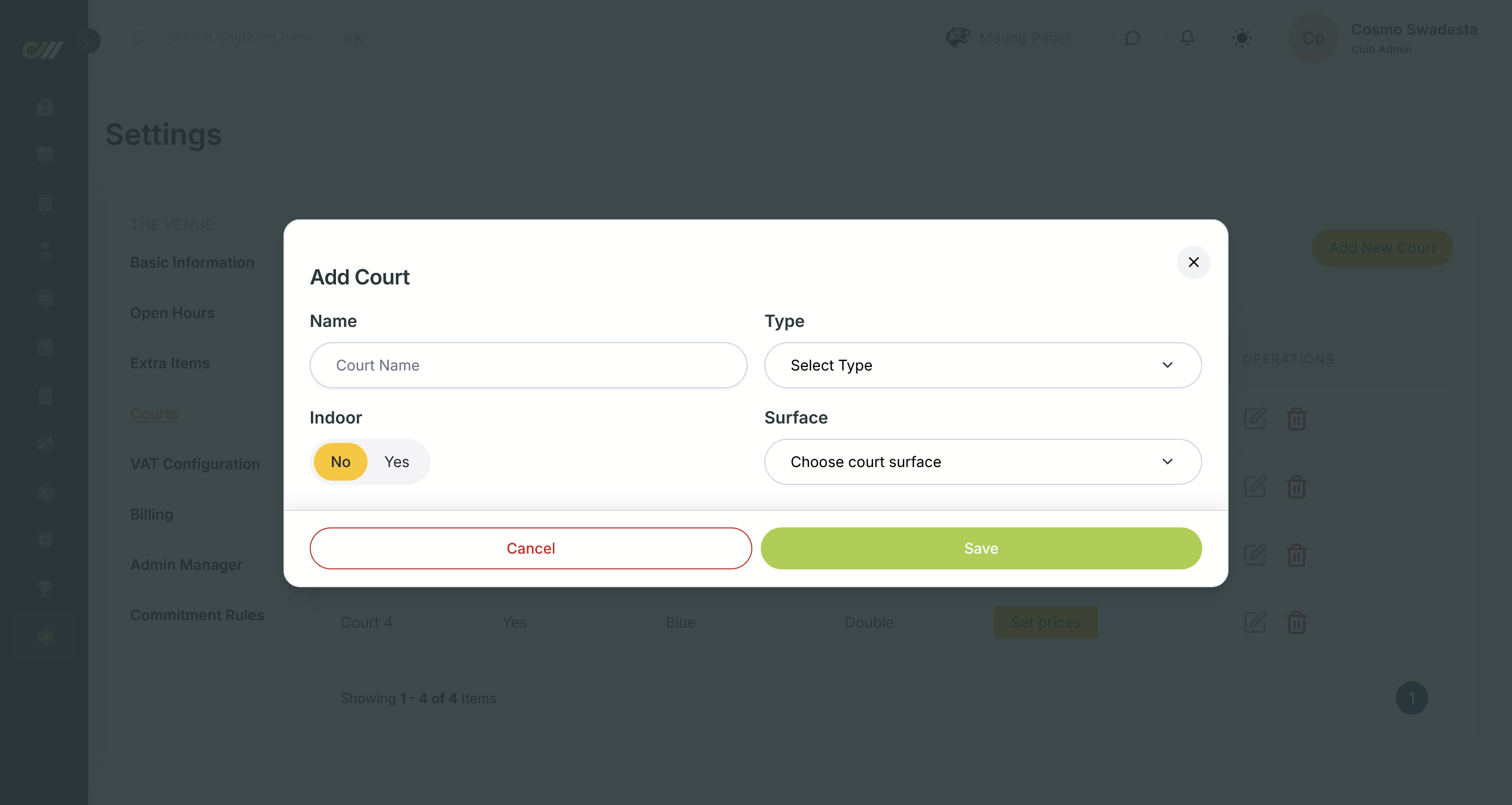
Add a New Court Information
- On the Settings > Court menu, tap on the Add New Court button
- Fill all the information in the available fields:
- Name: give your court a concise and unique name.
- Type: choose if your court is suitable for single or double players.
- Indoor: whether your court is placed inside a building or in an open space.
- Surface: choose the color of your court’s surface.
- Click on the Save button
⚠️ After adding a new court, don’t forget to Set prices for your new court.
Set Court Prices
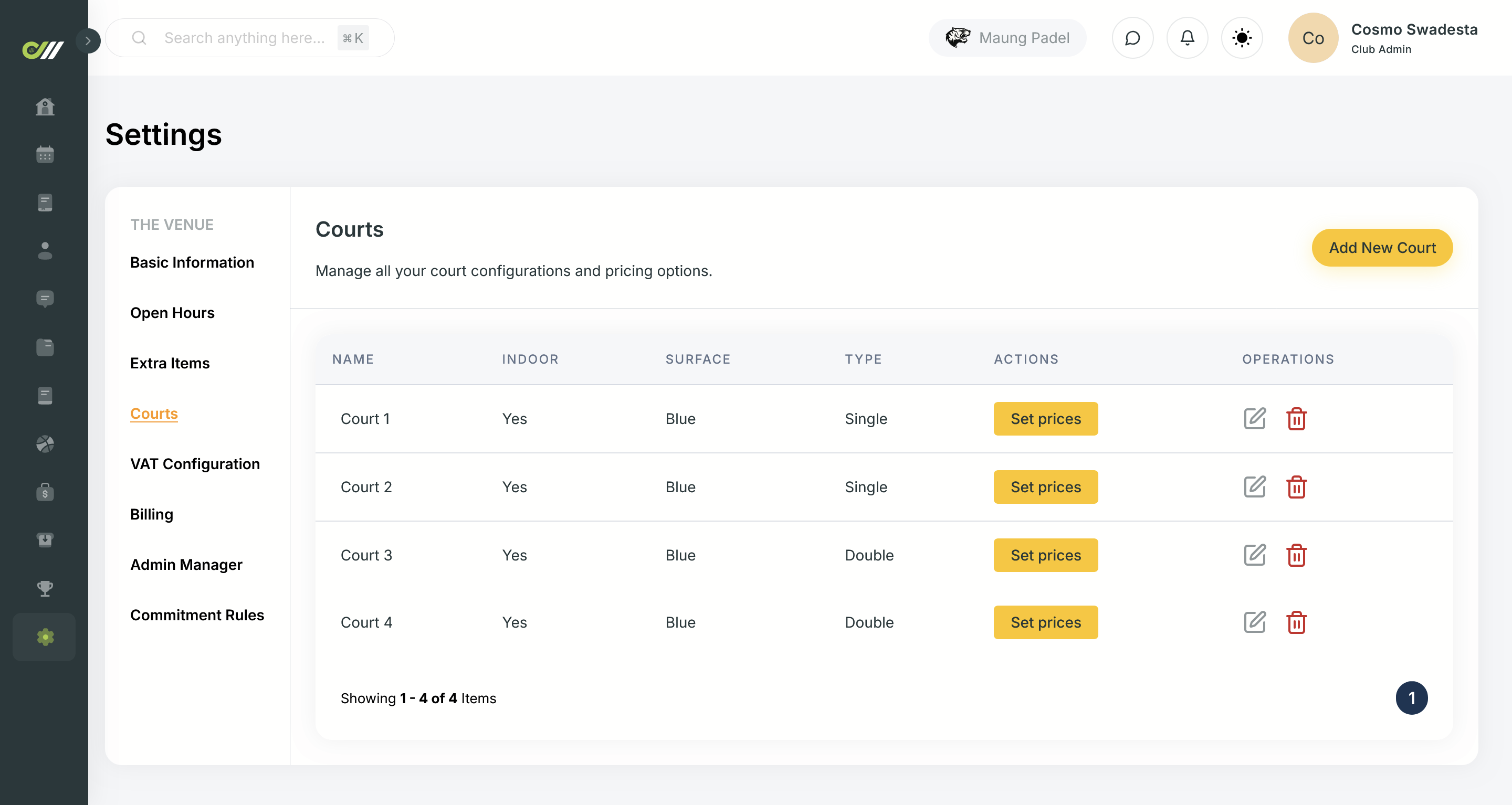
- On the Settings > Court menu, find the court you want to set the price.
- In the Actions column click on the Set prices button.
- A pop-up to set prices will appear.
- Click on the Set Prices button.
- Give your price a name, make sure you’re setting the right court, determine the price, start time, end time, and select the days to apply the price.
- You can also Set Price Duration if needed, maybe for your club’s promotional needs.
- Click on the Save button to save the price settings.
How to Edit Court
- Open the Settings page and then go to Court menu
- Find the court you want to edit, in the Operations column click on the pencil icon ✏️
- Confirm the deletion by clicking the Delete button
How to Delete a Court
- Open the Settings page and then go to Court menu
- Find the court you want to delete, in the Operations column click on the delete icon 🗑️
Confirm the deletion by clicking the Delete button